
Making a video used to mean buying a camera, renting a studio, or spending hours editing. In 2026, you need none of that. You just need your phone and the right free tool. But here is the real problem: there are dozens of AI video tools out there, and most of them are built for users in the US or UK. Indian creators are left figuring out which tools work on Jio, which ones actually stay free, and which ones slap a watermark on everything you make. This guide answers all of that. You will get the best free AI video tools for Indian creators, a full step-by-step workflow, and the exact ₹0 strategy to make your first AI video today.
What Is an AI Video Tool and Why Does It Matter for Indian Creators
An AI video tool uses machine learning to turn your text, images, or raw clips into a finished, edited video. You type a prompt or paste a script, and the tool handles the visuals, cuts, captions, and even the voiceover.
For Indian creators, this matters more than ever.
India has over 650 million short-form video users as of early 2026, and short-form content on Instagram Reels, YouTube Shorts, Moj, and WhatsApp Channels is growing fast. According to the Internet and Mobile Association of India (IAMAI), digital content consumption in India is growing at a pace unmatched globally, driven largely by regional language video. The demand for video is massive, but most Indian creators are working on a tight budget: a mid-range Android phone, a Jio or Airtel 4G connection, and zero money for expensive software.
AI video tools close that gap. They replace the camera, the editor, and the studio, all at zero cost.
Why AI video works specifically for Indian creators in 2026:
Reels and Shorts now drive most of the organic reach on every platform
Auto-caption tools support Hindi, Tamil, Telugu, and regional languages
Faceless video means you can build a channel without ever appearing on camera
AI cuts your editing time by up to 70%, which matters when trends move fast
Most of the top tools work on 4G and do not need a high-end device
The Truth About "Free" AI Video Tools in 2026
Before you download anything, here is something nobody tells you clearly: in 2026, 90% of hosted free AI video tools include either a visible watermark, an export limit, or a resolution cap. Fully free, watermark-free, unlimited AI video tools almost do not exist.
That is not a reason to stop. It just means you need to know what to expect before you start.
What "free" usually means in 2026:
A daily credit limit that resets every 24 hours
Export resolution capped at 720p on the free tier
A watermark on certain exports or templates
Limited access to premium features and assets
The smart strategy for Indian creators is to either pick one tool with the most generous free tier (CapCut) or rotate among multiple tools to combine their daily free credits. Both approaches work. This guide covers both.
Best Free AI Video Tools for Indian Creators in 2026
1. CapCut: Best Overall Free AI Video Editor
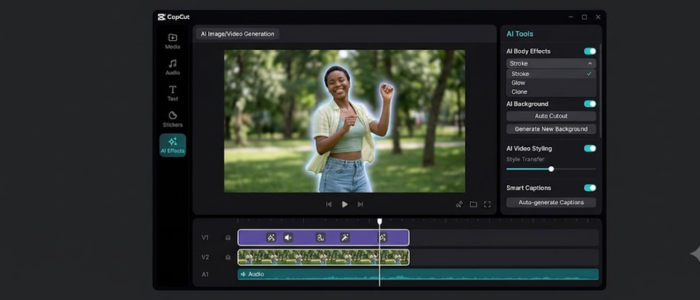
CapCut is the starting point for most Indian creators, and it deserves that position. The free plan gives you a full video editing suite: timeline editing, multi-track audio, keyframe animation, chroma key, auto-captions, basic background removal, and an AI voiceover feature. You can download it directly from CapCut's official website for Android, iOS, and desktop.
It works well even on mid-range phones on a 4G connection.
What you get for free:
Full timeline editor with cut, split, trim, and merge
AI auto-captions (up to 10 minutes per video)
Hindi, Tamil, and regional language text support with localized font libraries
Basic AI voiceover and text-to-speech
1080p export
Large template library (many premium templates are locked behind Pro)
Limitations to know:
The free plan includes 1GB of cloud storage, daily caps on AI feature usage, and restricted access to premium templates. After a 2025 restructure, some previously free templates now carry a Pro badge and watermark. The core editing tools remain free, but features like unlimited auto-captions, 4K export, and advanced background removal require a paid upgrade.
India-specific tip: Use CapCut's built-in Hindi text overlays and the regional music library. CapCut added localized Indian music in 2026, which is a real advantage for Reels targeting Tier 2 and Tier 3 audiences.
Best for: Reels, Shorts, trending template-based content, faceless videos with captions
2. InVideo AI: Best for Prompt-to-Video Speed
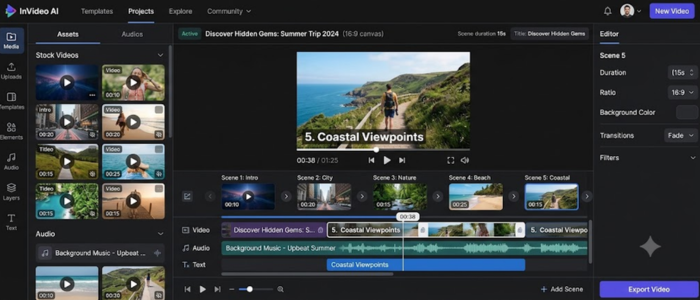
Type a topic, get a full video. That is InVideo AI's main value. You paste a script or a prompt, and InVideo generates B-roll, adds a voiceover, matches music, and delivers a roughly edited video in minutes. Visit InVideo AI to get started on the free plan.
In 2026, InVideo AI integrated Google's Veo 3.1 model, which means the visual quality of AI-generated clips has improved significantly, even on the free tier.
What you get for free:
AI-generated videos from text prompts
Auto-script generation
AI voiceover
Limited stock footage access
Template-based video builder
Limitations:
The free plan exports at 720p and adds a watermark. The stock footage library becomes repetitive quickly if you produce in volume. Treat the free plan as an extended trial before deciding whether to upgrade.
Best for: Faceless YouTube channels, social media content in bulk, news explainer formats
3. Haiper: Best for Mobile-First Indian Creators
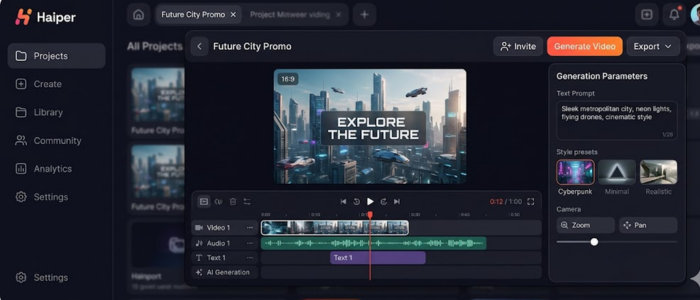
Haiper solved one of the biggest complaints about early AI video: "melting" subjects, where characters distort mid-clip. Haiper's 2026 model is built around motion coherence, which makes it the preferred tool for Indian creators who need consistent characters in short clips.
The free tier gives 10 generations per day at 720p. The web interface loads fast on 4G and 5G mobile connections.
What you get for free:
10 AI video generations per day
720p output
Good motion coherence for product and nature content
Simple web interface that works on mobile browsers
Best for: AI-generated B-roll, short clips without a camera, mobile-first creators
4. Clipchamp: The Hidden Gem for Windows Users
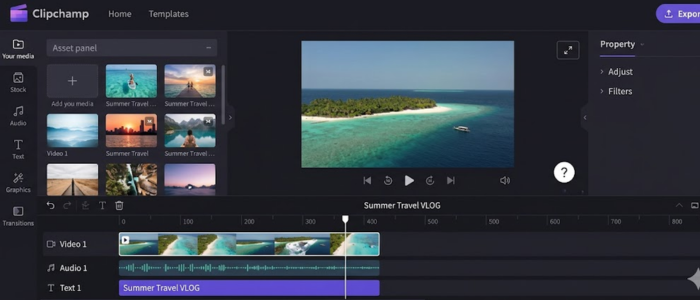
Clipchamp is a free browser-based video editor built into Windows 11 by Microsoft. Most Indian creators overlook it, but for anyone on a Windows laptop, it is worth knowing about.
The free plan gives unlimited 1080p exports without a watermark. The "Auto-Compose" tool takes raw footage and suggests a narrative edit. If you need a clean, watermark-free editor for basic videos, Clipchamp delivers without any signup.
Best for: Windows users who want watermark-free 1080p exports for free
5. Canva Video: Best for Non-Technical Creators
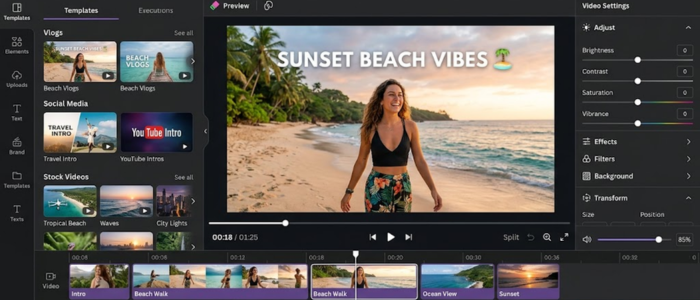
If you already use Canva for thumbnails or social graphics, the video editor is a natural next step. Canva's free plan includes video templates, basic trimming, text overlays, and audio.
It does not do AI text-to-video, but it handles the slide-plus-voiceover format extremely well. For creators making educational content, product walkthroughs, or comparison videos, Canva is hard to beat for simplicity.
Best for: Faceless educational content, product videos, non-technical creators
6. YouTube Create: Best for YouTube-First Creators
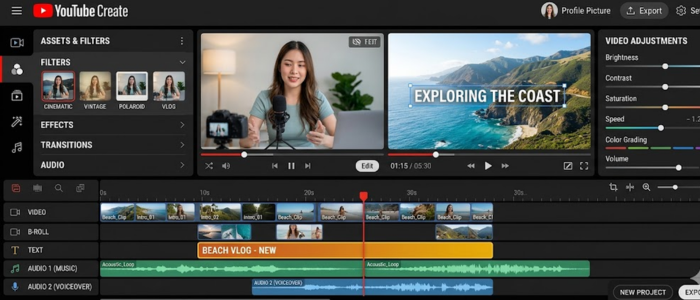
YouTube Create is Google's own free video editing app for Android, available on the Google Play Store. It offers AI trimming, auto-captioning, voiceover tools, and direct upload to YouTube.
It is not a generative AI tool, but the auto-caption and audio cleanup features save real time for creators who shoot talking-head content on their phone.
Best for: YouTube Shorts, tutorial videos, creators already in the Google ecosystem
Free AI Video Tools Comparison: Quick Reference Table
| Tool | Free Export | Watermark? | Hindi Support | Works on 4G | Best For |
|---|---|---|---|---|---|
| CapCut | Unlimited, 1080p | Some templates | Yes | Yes | Editing, Reels, Shorts |
| InVideo AI | Limited per week | Yes | Yes | Yes | Prompt-to-video |
| Haiper | 10/day, 720p | No | Partial | Yes | AI-generated clips |
| Clipchamp | Unlimited, 1080p | No | Partial | Better on WiFi | Windows users |
| Canva Video | Unlimited | No | Partial | Yes | Educational, faceless |
| YouTube Create | Unlimited | No | Yes | Yes | YouTube Shorts |
The ₹0 Budget Stack for Indian Creators
The most practical approach for an Indian creator starting from zero is to combine three free tools into one complete workflow. This covers scripting, visual generation, and editing without spending a single rupee.
The stack:
ChatGPT free tier for script writing
Haiper for AI-generated visuals (10 free generations per day)
CapCut free for editing, captions, and export
This combination gives you a complete pipeline from idea to published video at zero cost. If you need more AI-generated clips in a day than Haiper allows, add Genmo to the rotation. Genmo uses a daily fuel system that resets every 24 hours, making it a reliable backup for consistent B-roll output.
Tool rotation strategy: Do not rely on a single AI generator. Use Haiper for your primary clips, Genmo for backup B-roll, and Pika Labs if you need more cinematic motion in specific scenes. Each tool's free credits reset daily, so rotating across all three gives you more output for free.
Step-by-Step: How to Make a Free AI Video in India (2026 Workflow)
This workflow uses ChatGPT free, Haiper, and CapCut. It works on any Android phone on a Jio or Airtel 4G connection.
Step 1: Decide your format
Choose one format before you start. Faceless video (AI visuals and voiceover), talking head (your face plus AI editing), or template-based (trending CapCut format). Your format decides which tools you need and how long the process takes.
Step 2: Write your script
Use ChatGPT's free tier with this prompt: "Write a 60-second [Hinglish / Hindi / English] script for a YouTube Short about [topic]. Start with a 2-3 second hook. Give one actionable tip. End with a clear CTA. Keep it under 100 words."
Short scripts perform better on Reels and Shorts. Do not write more than you need.
Step 3: Generate your visuals
For faceless content: paste your script into InVideo AI and let it assign stock footage and B-roll automatically. For AI-generated clips: use Haiper with a simple scene description. For talking head: record on your phone in natural light near a window.
Step 4: Edit in CapCut
Import your clips into CapCut and follow this order:
Add auto-captions and choose a high-contrast style (bicolor works best for Reels)
Add background music from the free library at around 20% of the voice level
Add text overlays for your hook in the first 3 seconds
Use transitions only between scenes, not between every cut
Step 5: Export and post
Export at 1080p. Write an SEO-optimized caption with your focus keyword in the first line. Add hashtags in the first comment on Instagram, not in the caption itself.
Platform-Specific Tips for Indian Creators
Instagram Reels: Keep videos between 15 and 30 seconds for maximum reach. Use trending audio at low volume behind your AI voiceover. CapCut's trending sound section shows which tracks are currently viral in India.
YouTube Shorts: Add your focus keyword in the video title. Use CapCut's auto-captions before uploading because YouTube's own captioning is slower. Shorts under 60 seconds get the widest distribution.
Moj and ShareChat: These platforms reward regional language content. Use Hindi, Tamil, or Telugu text overlays in CapCut. Content that feels local performs significantly better than translated English content on these platforms.
WhatsApp Channels: Short clips between 15 and 30 seconds work best. Export a compressed version using CapCut's file size option so it loads fast for users on slow connections.
Common Mistakes Indian Creators Make With Free AI Tools
1. Using too many tools at once: Pick one editor and one generator. Stick with them for 30 days. Jumping between tools every week slows down your learning and your output.
2. Ignoring the watermark before posting: Check your export before you upload. CapCut's own end-card is deletable before export. Template-based Pro watermarks cannot be removed without upgrading. Always preview the full video before you post.
3. Skipping captions: Indian audiences scroll with the sound off more than most markets. Auto-captions on every video are non-negotiable. CapCut's free tier gives you 10 minutes of captioning per video, which is enough for most short-form content.
4. Writing long scripts for short videos: AI tools work best with tight, structured scripts. Hook in the first 3 seconds, one clear point, one CTA. That is all a Reel needs.
5. Not using India-specific settings: CapCut has localized Indian music libraries and regional language font support in 2026. Most creators do not use these. They make a real difference for Tier 2 and Tier 3 audiences.
Is Free Really Enough in 2026?
For most Indian creators starting, yes, free tools are enough to build an audience and grow to your first 10,000 followers. The quality ceiling of free tools in 2026 is genuinely higher than most people expect.
Where free tools fall short:
If a brand collaboration requires 4K deliverables, you will eventually need CapCut Pro
If you are producing more than 10 videos per week for faceless channels, a paid InVideo plan makes sense at scale
If a client specifies watermark-free exports as a contract requirement, paid tools become necessary
For everything else, the ₹0 stack covers the full workflow.
Conclusion
Creating videos in 2026 no longer requires expensive equipment or professional editing skills. With free tools like CapCut, Haiper, InVideo AI, Canva Video, and YouTube Create, Indian creators can produce high-quality content using just a smartphone and a 4G connection. Start with one tool, focus on consistency, and use the ₹0 workflow shared in this guide. The best AI video tool is ultimately the one that helps you create and publish content regularly.
ALSO READ:
- Best Free AI Tools for Indians in 2026
- How to Earn Money with Canva AI
- The Future of AI in 2026: Top 5 Smart Gadgets That Will Change Your Life
- Best AI Tools for Students (Free + Paid) – 2026 Guide
- Free AI Certification Courses for Students in India
- How to Create a YouTube Script Using AI Tools
- Top 5 Free AI Tools That Help You Make Money Online
- Generative AI 2.0: How Content Creation Has Transformed in 2026
Frequently Asked Questions (FAQs)
Q1. Which is the best free AI video app for Indian creators in 2026?
CapCut. It gives a full editing suite, Hindi support, and 1080p exports for free.
Q2. Can I make AI videos in Hindi for free?
Yes. CapCut supports Hindi captions and text overlays. InVideo AI generates Hindi scripts from prompts.
Q3. Do free AI video tools add watermarks?
Most do. CapCut's core exports are watermark-free, but some templates are not. InVideo AI always watermarks free exports.
Q4. Is CapCut free forever in India?
The core editor is permanently free. Some templates moved behind a paywall after a 2025 restructure.
Q5. Which free AI video tool works on a budget Android phone on 4G?
CapCut and Haiper both work well on mid-range Android devices on 4G. Haiper runs in the browser, so device specs do not matter.
Q6. Can beginners make professional-looking AI videos for free?
Yes. Start with CapCut templates, use auto-captions, and focus on content quality over production polish.
Q7. What is the tool rotation strategy for free AI video?
Use Haiper, Genmo, and Pika Labs on rotation. Each resets daily credits, giving you more free output per day.
Q8. Is InVideo AI free in India?
Yes, with limits. Free plan exports at 720p with a watermark and a weekly export cap.
Comments (0)
Be the first to comment.