
If you're a YouTuber, Instagram creator, student, or beginner, you know how difficult it is to find a free video editing app without watermark. Most apps force you to upgrade or add a big logo on your final video.
The good news? In 2025, several powerful apps will let you edit professionally and export in HD, completely watermark-free, without paying anything.
Edit videos for free
Export without watermark
Use professional tools
Access transitions, effects & filters
Create content for YouTube, Reels, Shorts
Without paying any subscription
This detailed guide covers the best free video editing apps without watermark, their features, pros/cons, who should use them, and how to choose the right app based on your needs.
Let’s dive in!
Why Choose a Video Editor Without Watermark?
A watermark is a logo or text added by an app when you export a video. It looks unprofessional and reduces your content quality.
Using a watermark-free video editor helps you:
Build a professional brand
Grow faster on YouTube & Instagram
Export clean videos with no distractions
Avoid expensive subscriptions
Edit quickly & easily on mobile
If you're a student or beginner, watermark-free editors are the best because they are simple, powerful, and fully free.
Top 10 Best Free Video Editing Apps Without Watermark (2025)
1. CapCut (Best Overall Free Editor)
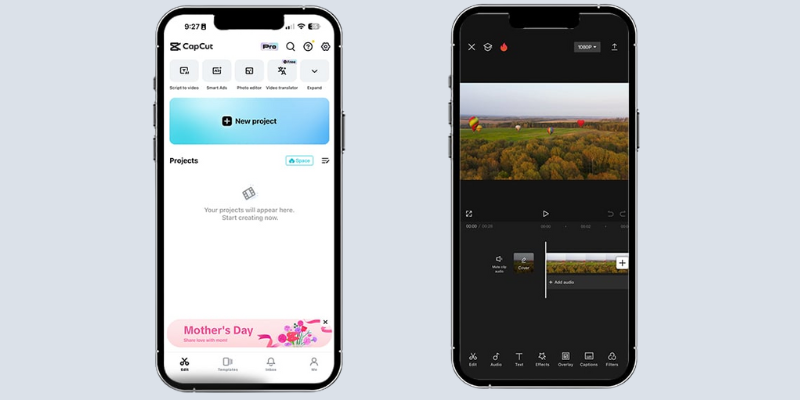
CapCut is the most powerful free mobile editing app available today. Developed by ByteDance, it is designed for YouTube Shorts, Reels, TikTok, and long-form content.
Key Features:
Fully free, no watermark
Professional transitions
AI auto-captions
Sound effects & music library
Background removal (AI)
Green screen
Speed ramping
60 FPS export
Templates for Reels & Shorts
Why It’s Best
CapCut gives you premium-level features without asking for money. Even exporting 1080p or 4K videos is free.
Best For:
- YouTubers, Instagram creators, vloggers, students.
Downsides:
Needs a good phone
Some features need the internet
2. VN Video Editor (Beginner-Friendly & Watermark-Free)

VN is another amazing free editor with zero watermark and a clean user interface.
Key Features:
No watermark
Multi-layer video editing
Filters & transitions
Green screen
Templates for Shorts/Reels
Speed control
Keyframe animation
Why It’s Special
VN looks like a mini version of Adobe Premiere Pro, super easy yet powerful.
Best For:
- Beginners, mobile editors, travel vloggers.
Downsides:
No advanced effects like CapCut
Few templates
3. InShot (Free Version Without Watermark If You Watch Ads)
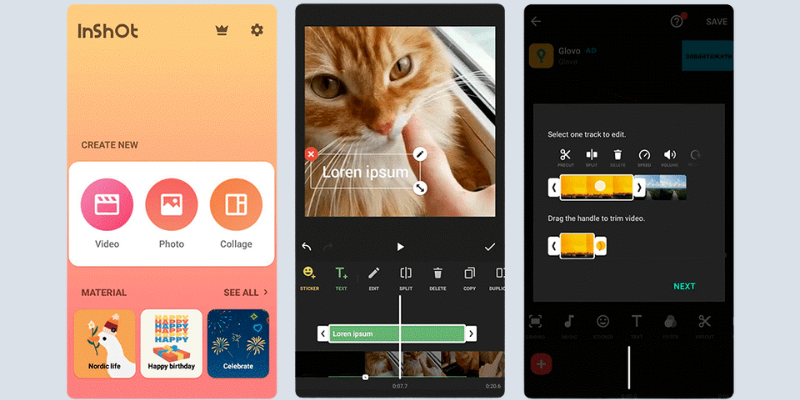
InShot is one of the most downloaded video editing apps globally.
Does It Have Watermark?
You can remove the watermark for free by watching a 5-second ad. So it qualifies as free without watermark.
Key Features:
Music, sound effects
Speed control
Reverse video
Text & stickers
Easy crop for Shorts, Reels
Smooth transitions
Best For
- Beginners who want quick editing.
Downsides:
Some features require the Pro plan
Limited color grading
4. YouCut (Completely Free, No Ads, Watermark)
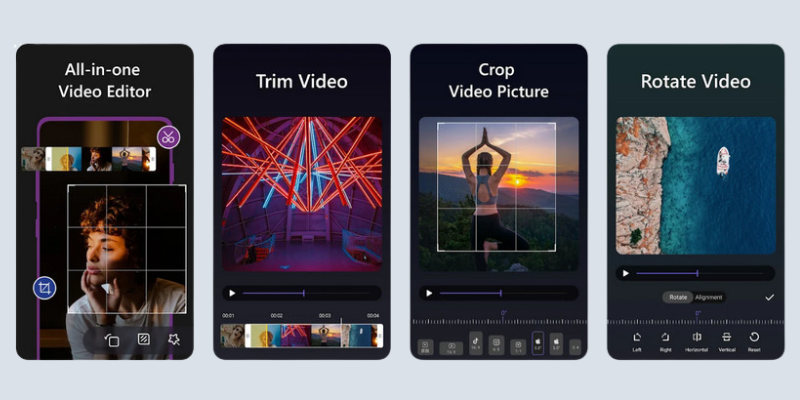
YouCut is a simple yet powerful editor from the InShot team.
Key Features:
Completely free
No watermark
Compress videos
Merge clips
Transitions
Filters
Slideshow maker
Best For
- Simple YouTube and Instagram videos.
Downsides:
No advanced effects
No multi-layer timeline
5. Adobe Premiere Rush (Free Export Without Watermark)
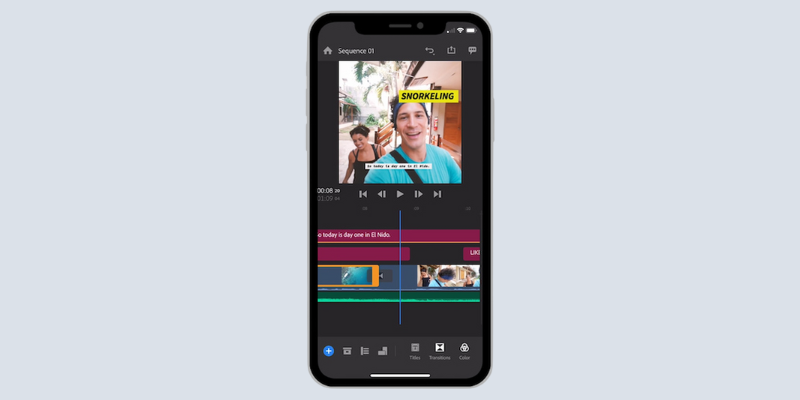
Adobe’s mobile app, Premiere Rush, offers free exports without watermark.
Key Features:
Professional transitions
Color correction
Multi-track timeline
Cloud sync with Adobe
Best For
- Semi-professional creators.
Downsides:
Limited free exports per month
Some features require Adobe Creative Cloud
6. Kinemaster (Watermark-Free With Export Trick)
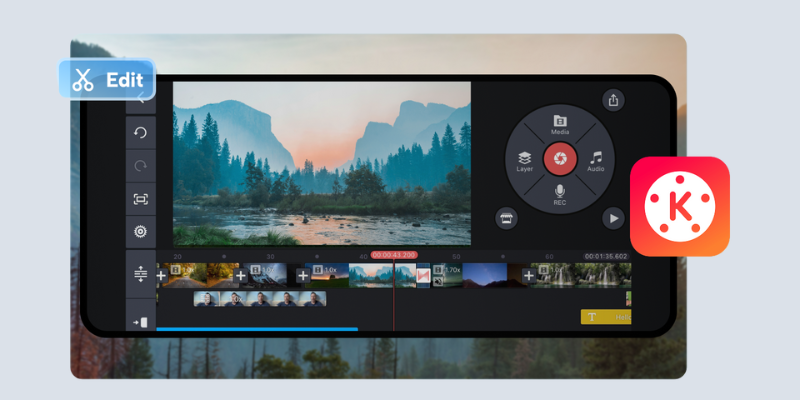
Kinemaster has a watermark in the free version, but you can remove it using:
Kinemaster Lite
Short-term free trial
Educational versions (some devices)
Key Features:
Green screen
Layer-based editing
Professional sound control
Effects & transitions
Best For
- Students are learning advanced editing.
Downsides:
Watermark in the default free app
Heavy on phone storage
7. Filmora Mobile (Free Export Without Watermark Limited Times)

Filmora Mobile allows several free exports with no watermark.
Key Features:
Ready-made templates
AI portrait cutout
Color grading tools
Motion graphics
Best For
- Instagram creators & beginners.
Downsides:
Limited free exports
Some AI tools are locked
8. PowerDirector (Watermark-Free With Watch-Ad Option)

You can remove watermark for free after watching an ad.
Key Features:
Chroma key
Slow motion
Audio editing
4K export
Stabilization
Best For
- Short-form creators.
Downsides:
Heavy app
Some features are paid
9. ShotCut Mobile (Open Source, No Watermark)
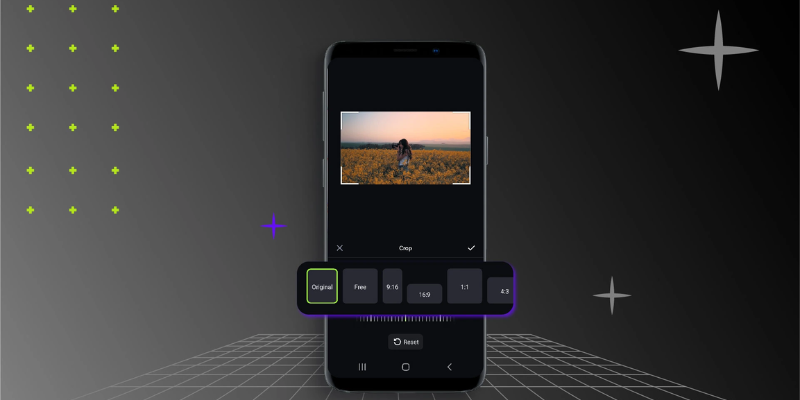
A free open-source editor with no hidden charges.
Key Features:
Full multi-layer editing
Color grading
Transitions
Slow motion
Best For
- Students on low-budget phones.
Downsides:
UI is basic
Fewer effects
10. LightCut (AI-Based Free Editor)
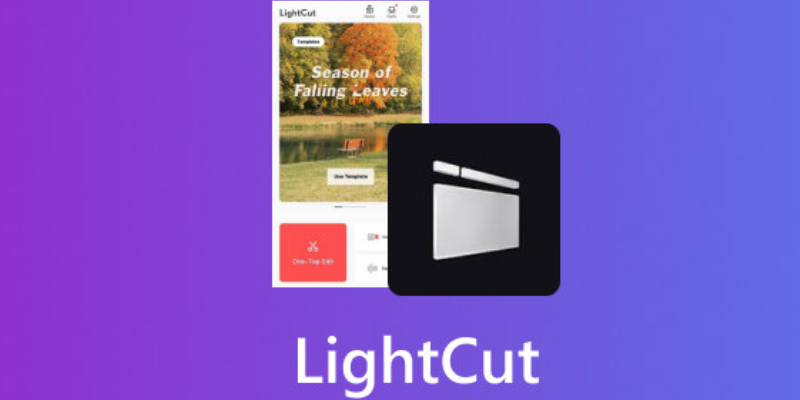
LightCut automatically edits your videos using AI.
Key Features:
No watermark
AI auto-edit
Templates
Great for reels
Best For
- Complete beginners.
Downsides:
- Limited manual editing
Comparison Table
| App Name | Watermark? | Difficulty | Best For | Export |
|---|---|---|---|---|
| CapCut | No | Easy | All creators | 1080p/4K |
| VN | No | Easy | Vloggers | 1080p |
| InShot | Removable | Easy | Beginners | 1080p |
| YouCut | No | Easy | Students | 1080p |
| Premiere Rush | No | Medium | Semi-pro | 4K |
| Kinemaster | Trick-based | Medium | Advanced users | 4K |
| Filmora | Limited free | Easy | Reels/Shorts | 1080p |
| PowerDirector | Watch-ad | Medium | Short creators | 4K |
| ShotCut | No | Medium | Students | 1080p |
| LightCut | No | Easy | Auto-edit creators | 1080p |
How to Choose the Best Free Video Editing App (Based on Your Needs)
Choosing the right editing app becomes easy when you know your content style and your phone’s capabilities. Here’s how to pick the perfect one:
1. For YouTube Shorts, Reels & TikTok
If you mainly post short vertical videos, choose an app with:
Ready-made templates
Auto captions
Easy transitions
Fast export
Best choices: CapCut, VN, LightCut, InShot
These apps help you create quick, trendy, eye-catching videos.
2. For YouTube Long Videos
You need a timeline-based editor with multi-layer support.
Best choices: VN, Kinemaster, Adobe Premiere Rush
They offer better control over audio, B-roll, color grading, and professional editing.
3. For Travel, Aesthetic & Instagram Vlogs
Look for color grading tools + smooth transitions.
Best choices: VN, CapCut
Both apps offer cinematic filters and slow-motion tools.
4. For Low Storage or Budget Phones
Choose something lightweight and simple.
Best choices: YouCut, LightCut
5. For Advanced Editing
If you want chroma key (green screen), effects, animations, etc.
Best choices: Kinemaster, PowerDirector
Best App for Absolute Beginners
If you’re new to video editing and want something simple, fast, and easy:
1. CapCut - Easiest Overall
Ready-made templates
Drag & drop editing
Auto subtitles
No watermark
Perfect for creators who want professional videos instantly.
2. VN - Simplest Timeline Editor
Clean interface
Zero watermark
Great for learning basic editing
Ideal for students and vloggers.
3. YouCut - Beginner + Low Storage Friendly
Very lightweight
No watermark
Perfect for small videos or simple edits
Winner for Beginners: CapCut
Because it gives you everything, auto cut, captions, transitions, templates, without the complexity.
Tips to Edit Better Videos (Even If You’re a Beginner)
These beginner-friendly tips instantly improve your video quality:
1. Keep Your Clips Short
Fast-paced videos keep viewers watching longer.
2. Use Natural Light or a Ring Light
Good lighting makes even simple videos look professional.
3. Add Subtitles
Most viewers watch videos without sound, especially on Instagram.
4. Use Clean Transitions
Use 2–3 transitions only, don’t overdo it.
5. Use Trending Music (Non-Copyright for YouTube)
Helps boost reach on Shorts, Reels, and TikTok.
6. Export in at Least 1080p
Anything below 1080p looks blurry on social media.
7. Maintain a Consistent Style
Use similar fonts, colors, and transitions so your content looks branded.
Common Mistakes Beginners Should Avoid
Using too many effects: Extra filters/effects make videos look messy. Keep it clean and simple.
Random transitions: Stick to smooth transitions like fade or swipe, avoid flashy ones.
Using copyrighted music: Your video may get blocked or muted. Use copyright-free music only.
Ignoring audio quality: Noisy audio reduces watch time. Use noise reduction and adjust sound levels.
Exporting in low resolution: Always export in 1080p for professional-quality videos.
Using too many fonts: Stick to 1-2 clean fonts to maintain consistent branding.
No story flow: Even short videos need a clear beginning, middle, and ending.
Conclusion
In 2025, creating professional videos without spending money is easier than ever. Free, watermark-free apps like CapCut, VN, YouCut, and Premiere Rush give beginners access to advanced tools, templates, transitions, auto-captions, color correction, and even 4K export.
Your best app depends on your content style:
CapCut - Best overall for all-round editing
VN - Clean, simple timeline for beginners
YouCut - Lightweight editor for quick videos
With simple editing habits, good lighting, and consistent practice, you can easily produce high-quality YouTube, Shorts, and Instagram videos right from your phone, without paying for premium tools.
ALSO READ: YouTube Automation Channels – Passive Income in 2025
How to Earn From YouTube Shorts in 2025 (Without 1000 Subscribers)
Top 10 Online Form Filling Jobs Without Investment 2025 (Genuine Work From Home Guide)
10 Genuine Work-from-Home Jobs for Students in India (2025 Guide)
How to Earn Money from Instagram Reels (2025 Guide)
FAQs - Free Video Editing Apps Without Watermark (2025)
1. Which free app is best for editing videos without watermark?
CapCut and VN are the top two completely free, no-watermark editors in 2025.
2. Does InShot have watermark?
Yes, but you can remove it for free by watching a 5-second ad.
3. Which app is best for YouTube Shorts?
CapCut is the best for Shorts due to templates, effects, and auto-captions.
4. Can I edit 4K videos for free?
Yes. CapCut, Kinemaster (trial), PowerDirector, and Premiere Rush support free 4K export.
5. Is CapCut 100% free?
Yes. CapCut is completely free and has no watermark on exports.
6. Which editor is best for beginners?
VN and CapCut are the easiest for absolute beginners.
7. Which app is best for aesthetic videos?
VN is best for smooth, aesthetic, and travel-style videos.
Comments (0)
Be the first to comment.