
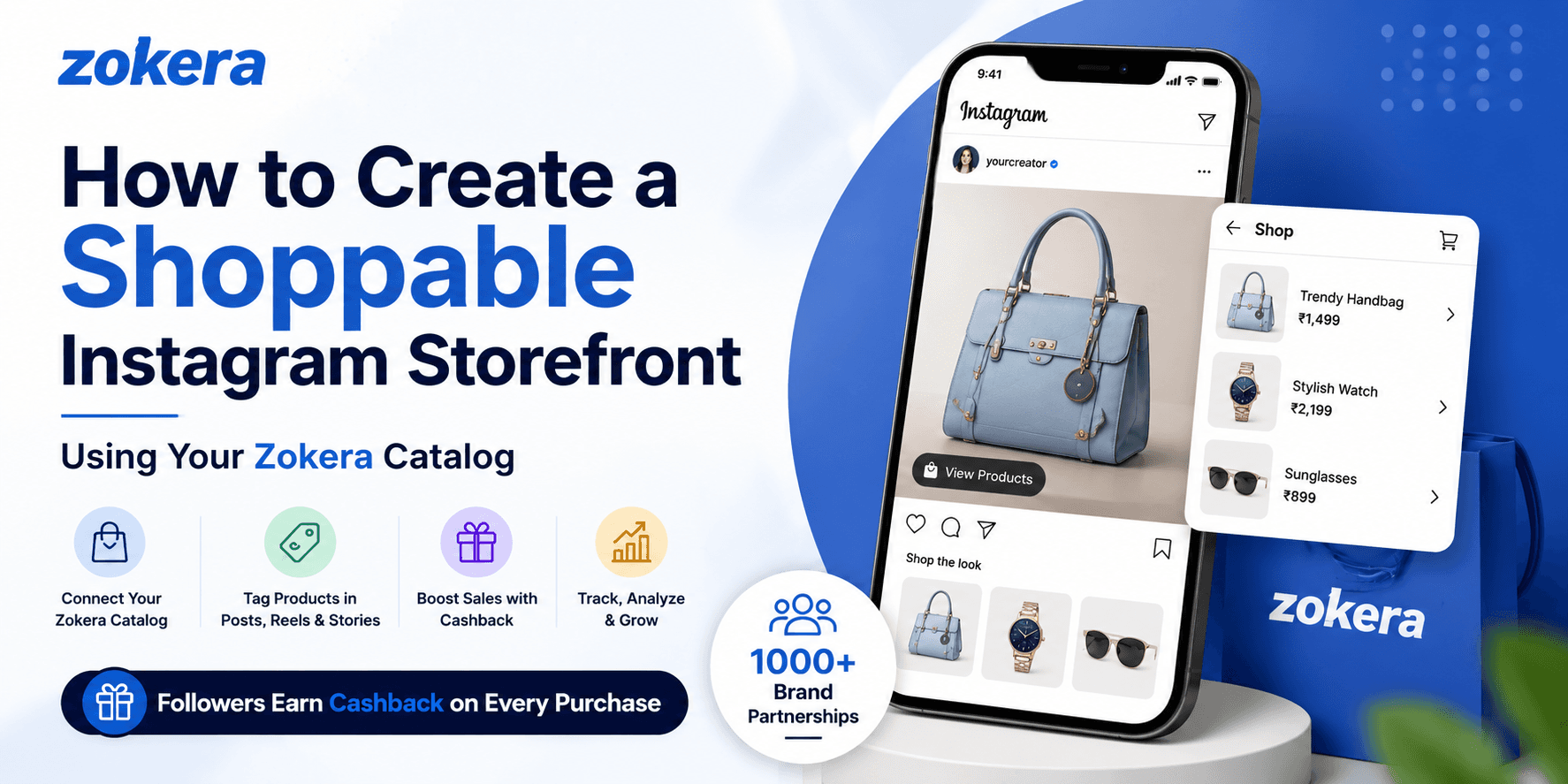
If you post on Instagram regularly but still send followers to a separate link to buy anything, you are losing sales at the exact moment someone is most interested. This guide walks you through how to create a shoppable Instagram storefront using your Zokera catalog, so a follower can go from seeing a product in your Reel to owning it in three taps, with cashback built in to make them come back.
Why a Shoppable Instagram Storefront Matters for Creators
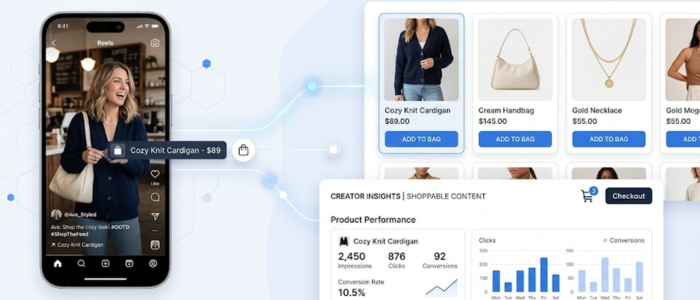
Instagram already behaves like a shopping app for a large share of its users. Industry research on Instagram shopping behavior puts the share of shoppers spending $200 or more on the platform above 40%, higher than most other social apps, which signals real purchase intent rather than casual browsing.
For a creator, that intent is wasted if every purchase decision requires someone to leave the app, hunt through a bio link, and figure out which product matched which post. A shoppable storefront removes every one of those steps. The product tag is the store.
This is where running your Zokera creator storefront changes the math. Instead of building a catalog product by product, you already have one, backed by 1000+ brand partnerships, and every purchase your followers make through it earns them cashback. That single incentive is often the difference between someone bookmarking a product "for later" and buying it the same day. If you have not decided which categories to lead with, our guide on choosing products for your creator storefront is worth reading before you connect anything to Instagram.
What You Need Before You Start
Instagram will not let you tag products or open a Shop until your account clears a short list of requirements. Getting these right the first time avoids the most common cause of rejected reviews.
An Instagram Business or Creator account, not a personal profile
A connected Facebook Page linked to that Instagram account, since Instagram Shopping runs through Meta's Commerce Manager
A market where Instagram Shopping is active; you can confirm eligibility on the Meta Business Help Center
Products that comply with Meta's Commerce Policies
A visible, consistent storefront link across your profile, so Instagram and your followers can both verify what you are actually selling
If even one of these is missing, your account may sit in review far longer than necessary or get rejected outright.
How to Create a Shoppable Instagram Storefront: Step by Step
Step 1: Switch to a Business or Creator Account
Open your Instagram profile, tap the menu icon, then go to Settings. Under Account type and tools, select Switch to professional account and choose Business or Creator. Most individual creators running a personal storefront find Creator accounts give more relevant analytics, though both unlock shopping features equally.
Step 2: Connect Your Facebook Page
Instagram Shopping is built on top of Meta's Commerce Manager, so your account needs a linked Facebook Page. If you do not already have one, create a simple page under your creator name and connect it under Settings > Business.
Step 3: Connect Your Zokera Catalog Instead of Building One From Scratch
This is where most generic tutorials tell you to add products one at a time. As a Zokera creator, skip that entirely. Go to your Zokera dashboard, open the storefront section, and generate your catalog feed link, which already contains your selected products, images, pricing, and descriptions from Zokera's brand partnerships.
In Meta Commerce Manager, choose Add Catalog, select Data Feed, and paste your Zokera feed URL. Any product you add or remove on your Zokera storefront afterward syncs automatically, so you are never manually re-uploading products to keep Instagram current.
Step 4: Submit Your Account for Shopping Review
Inside the Instagram app, go to Settings > Business > Shopping and follow the prompts to submit for review. Approval typically takes anywhere from a few hours to a few days. If you are timing this around a launch, submit at least a week ahead.
Step 5: Turn On Product Tagging
Once approved, return to Settings > Business > Shopping, select your connected Zokera catalog, and toggle product tagging on. From here, every new post, Reel, or Story will give you the option to tag a product directly from that catalog.
Tagging Products Across Posts, Reels, and Stories
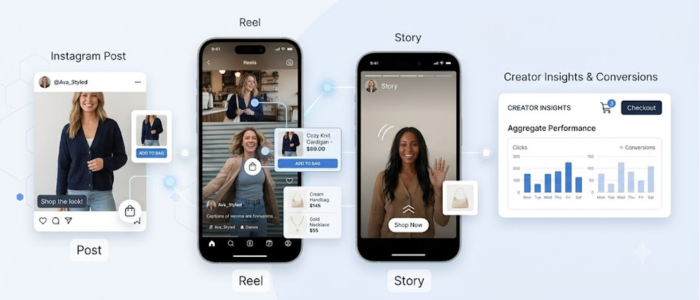
Posts and Reels: Before publishing, tap Tag Products, then search your catalog and select the item.
Stories: Use the sticker tray, choose the Product sticker, and pick the item you want to tag.
Live videos: Pin products during Instagram Live so viewers can shop while watching in real time.
Every tag routes back to that exact product on your Zokera storefront, so the follower's entire journey, from seeing it in your content to paying for it, stays inside a system they already recognize.
Common Issues and How to Fix Them
Catalog not syncing: Confirm you selected "Data Feed" rather than a manual upload in Commerce Manager, and that your Zokera feed URL is still active.
Stuck in "Pending Review" for over a week: This is usually an incomplete Facebook Page rather than a problem with your products. Fill in every business detail field on the Page before resubmitting. Later's Instagram Shop setup guide has a useful account-side eligibility checklist if you want a second pass to confirm nothing was missed.
No "Tag Products" option when posting: Shopping has not been fully enabled yet. Recheck
Settings > Business > Shopping and confirm your catalog is selected and toggled on.Approved, but a specific product shows as unavailable: Check your Zokera dashboard directly. Instagram pulls availability status straight from your connected feed, so an out-of-stock or deactivated item on Zokera will show the same way on Instagram.
Mistakes Creators Make When Setting Up Instagram Shopping
Tagging every product in one post. Tagging five or six items at once dilutes attention. Tag the one or two products that are actually the focus of that piece of content.
Submitting for review before the Facebook Page is complete. This is the single most avoidable cause of rejection.
Using a manual catalog upload instead of a synced feed. New products added to your Zokera storefront will never appear as tags if your Instagram catalog was set up as a one-time manual upload.
Treating setup as a one-time task. The approval and catalog connection happen once, but tagging, refreshing products, and reviewing what is converting are ongoing habits.
Never mentioning the cashback incentive. Followers respond to knowing there is a direct reward for buying through your storefront. Leaving it out of captions and Stories wastes a conversion lever that is already built in for you.
Sticking to one brand deal instead of diversifying. Zokera's brand partnership program gives you access to 1000+ partnerships, so relying on a single brand's products limits both your catalog variety and your backup options if that brand runs out of stock.
Tracking Performance of Your Shoppable Storefront
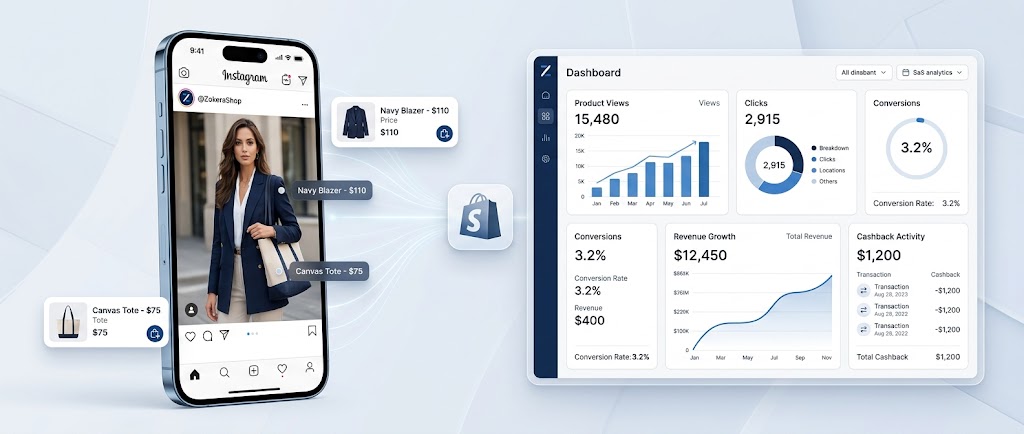
Once tagging is live, check Insights on any tagged post, Reel, or Story to see product page views and taps, which show buying intent even before a sale closes.
On the Zokera side, your creator dashboard shows exactly which products are converting, how much of that revenue is coming from cashback-motivated followers, and which brand partnerships perform best with your specific audience. Reviewing both weekly, rather than only after a big push, makes it easier to double down on formats that are already working, for example noticing that Reels convert better than static posts for a certain product category. For a closer look at how the reward math works on the buyer's side, see how followers earn cashback through Zokera.
How Often to Refresh Your Storefront Catalog
A shoppable storefront loses effectiveness the moment it feels frozen in time. Followers who buy once and come back a month later to see the same products have little reason to check again. Aim to rotate at least a few items every two to three weeks, prioritizing whichever brand partnerships are currently performing well in your Zokera dashboard.
Seasonal timing matters here too. Swapping in weather-appropriate or occasion-specific products ahead of a season, rather than after it has already started, tends to catch followers while they are actively planning purchases rather than after the moment has passed. Because your Instagram catalog syncs automatically from your Zokera feed, none of this rotation requires touching Meta Commerce Manager directly. Update your storefront on Zokera, and Instagram reflects it within the normal sync window.
Scaling With Instagram Shopping Ads
Once you know which tagged products from your Zokera storefront are already converting organically, boosting that specific post through Meta Ads Manager is a faster way to grow reach than posting more content and hoping. The ad carries the same product tags your followers already see organically, so there is no separate creative to build. If you are new to running paid promotion on the platform, Hootsuite's guide to Instagram advertising covers the ad-building basics before you touch shopping-specific formats.
This works especially well right after a new brand partnership product goes live. If it gets strong engagement in the first day or two, a small daily budget behind that exact post extends it to people who follow similar creators but not you yet.
Shoppable Storefront vs. Just a Bio Link
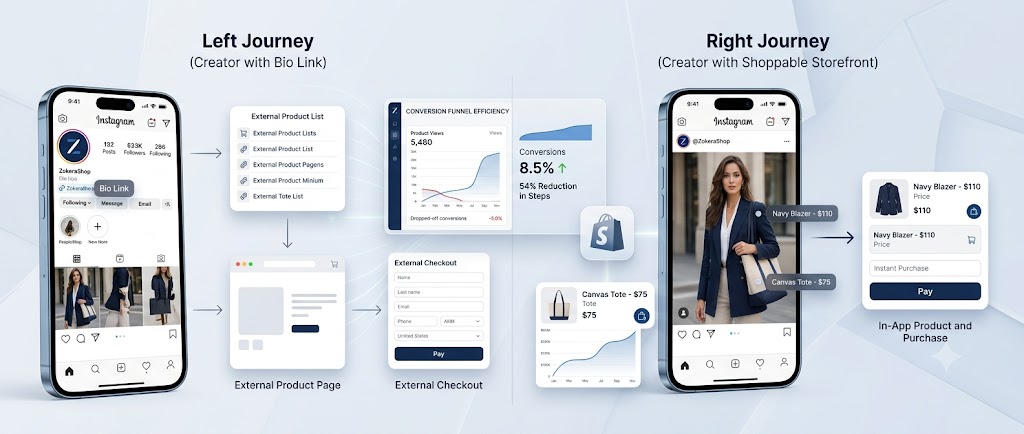
A single bio link still has a place, mainly for followers browsing your profile directly rather than reacting to one specific post. But every step between seeing a product and buying it loses a percentage of interested buyers. A shoppable storefront collapses "see it, tap it, buy it" into one motion instead of four, which matters more the more content you post in a week.
Best Practices to Get More Sales From Your Storefront
Tag products retroactively on your best-performing older Reels and posts, not only new content.
Use Stories stickers often, since Stories tend to drive faster, more impulsive taps than feed posts.
Say the cashback benefit out loud in captions instead of assuming followers already know.
Rotate in newer brand partnership products seasonally so returning followers see something new.
Pair tagged posts with an honest, specific reason you like the product, not a generic caption.
Instagram Shopping Eligibility by Region
Instagram Shopping is not available everywhere, and checkout behavior itself changes depending on where your business is registered. In-app checkout on Instagram is limited to shops based in the United States. Outside the US, a tagged product still opens a clean product page, but the actual purchase completes on the linked storefront, which in your case is Zokera, rather than inside Instagram's own checkout flow.
This distinction matters less than it sounds. Whether checkout happens inside the app or on your connected storefront, the follower experience stays smooth, since Zokera's product pages are already built to convert on mobile. What does matter is confirming your account's registered market qualifies for Shopping at all before you invest time in setup, which you can check directly on the Meta Business Help Center.
Conclusion
Creating a shoppable Instagram storefront is no longer a technical project reserved for big brands with a dev team. With a Business or Creator account, your Zokera catalog connected through a synced feed, and a few minutes spent enabling product tags, your existing content becomes the store. The part most creators skip, sourcing and managing products, is already solved through Zokera's brand partnerships, and the cashback layer gives your followers a reason to buy from you specifically instead of anywhere else. If your Zokera storefront is not connected to Instagram yet, that is the one setup step standing between your content and consistent sales.
ALSO READ:
- How Digital Storefronts Work for Creators in India
- How to Set Up Your Zokera Creator Storefront in Minute
- What Is Zokera and How Does It Work? The Ultimate Guide for Creators in India
- Zokera Auto-DM: Turn Every Instagram Comment Into a Sale
- Best Creator Commerce Platform in India 2026: Everything You Need to Know
- How to Make Money from Your Social Media Following in India
- How Instagram Influencers Can Monetize Using Zokera (2026)
Frequently Asked Questions (FAQs)
1. Is it free to set up a shoppable Instagram storefront?
Yes. Instagram Shopping itself is free. You only pay if you run ads or if a payment processor charges a checkout fee.
2. Do I need a separate website to make my Instagram storefront shoppable?
No, if you are using Zokera. Your product tags route through your Zokera storefront, so you do not need a standalone website.
3. How long does Instagram take to approve a shoppable account?
Usually a few hours to about a week, depending on your account history and how complete your Facebook Page details are.
4. Can I tag products in Instagram Stories?
Yes, use the Product sticker in the Stories sticker tray to tag any item from your connected catalog.
5. What is the difference between a Business and Creator account for Instagram Shopping?
Both unlock shopping features equally. Creator accounts often suit influencers better, while Business accounts suit a more storefront-first presence.
6. Why is my product catalog not syncing with Instagram?
Usually the feed URL is inactive or was added as a manual upload instead of a Data Feed. Confirm your Zokera feed link is live and correctly connected.
7. Do followers really earn cashback from purchases made through my storefront?
Yes. Every purchase made through your Zokera storefront link, including ones made via a tagged Instagram post, earns the buyer cashback.
8. Do I need a large following to set up Instagram Shopping?
No. There is no follower minimum. Eligibility depends on account type, market, and product compliance, not audience size.
9. Can I feature products from multiple brand partnerships in one storefront?
Yes. With access to 1000+ brand partnerships through Zokera, you can build a single storefront that spans multiple categories instead of relying on one brand deal.
10. What should I do if my Instagram Shopping review gets rejected?
Check the rejection reason in your notifications; most often, incomplete Facebook Page details or a policy compliance issue. Fix that specific item, and resubmit.
11. Can I tag products during Instagram Live sessions?
Yes. You can pin products from your connected catalog during Live videos so viewers can buy while watching.
Comments (0)
Be the first to comment.